
Connect Apple Health to DeepSeek
Connect DeepSeek, Kimi, Qwen or GLM to Apple Health through Cherry Studio and the free P.R.O. MCP connector at https://mcp.proapp.uk, using your own API key for the model.
Cherry Studio connects to P.R.O. and offers its tools to the model you pick, for only the categories you allow: workouts, sleep, heart rate, HRV, training load and training plan. The chat apps themselves have no custom MCP connector option as of November 2026.
- Server address
https://mcp.proapp.uk- Sign-in
- OAuth with a one-time code from P.R.O.
- Time
- About 2 minutes
How to connect DeepSeek
Set up P.R.O. in Cherry Studio once. After that, you can switch between models without connecting again.
Before you start
- P.R.O. on your iPhone, signed in, with Apple Health access allowed. It’s free.
- Cherry Studio on your computer.
- An API key from DeepSeek, Moonshot (Kimi), BigModel (GLM), or a provider that hosts Qwen, such as SiliconFlow.
- Open Settings → MCP → MCP Servers in Cherry Studio.
The gear icon is at the bottom left of the window.
- Select + Add → Quick Create.
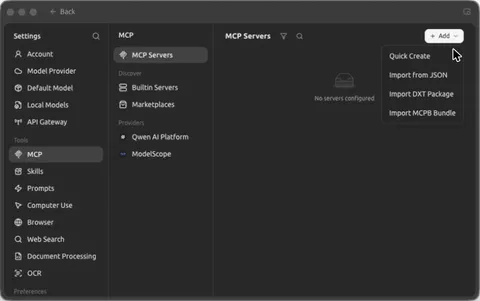
+ Add → Quick Create. - Fill in the form and select Add.
Name: P.R.O. Type: Streamable HTTP (streamableHttp). URL: https://mcp.proapp.uk. Leave Headers empty: there’s no API key, P.R.O. registers Cherry Studio on its own.
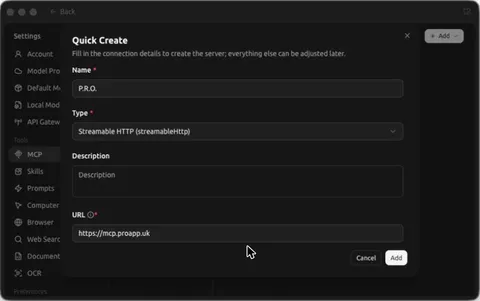
The filled-in form. - Turn on the switch at the top right.
The status changes to Waiting for authorization and the P.R.O. authorization page opens in your browser. Cherry Studio waits for a few minutes, so have your iPhone ready.
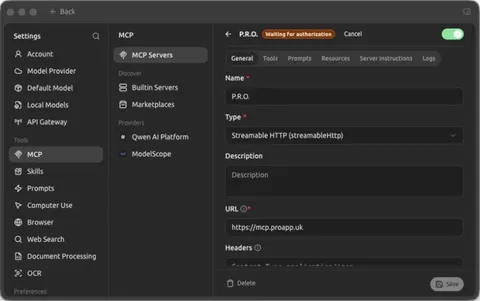
Waiting for authorization: finish the sign-in in your browser. - Sign in to P.R.O.
The P.R.O. authorization page opens.
On your iPhone, open P.R.O. → Settings → MCP Connect and tap Get connection code. Enter the six-character code on the authorization page and select Connect. The code works once, for 10 minutes.
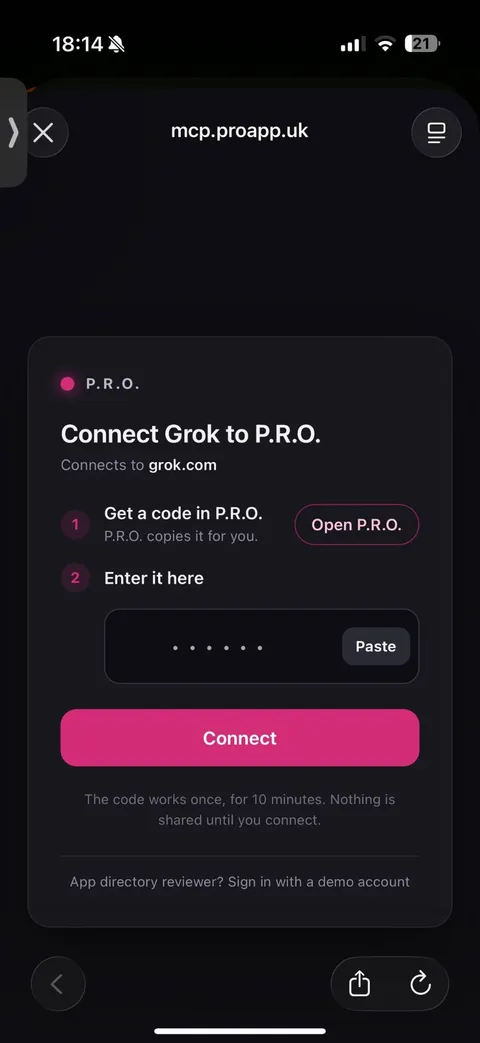
The P.R.O. page looks the same for every assistant. - Choose what Cherry Studio can access.
Review the data switches in P.R.O. and tap Done.
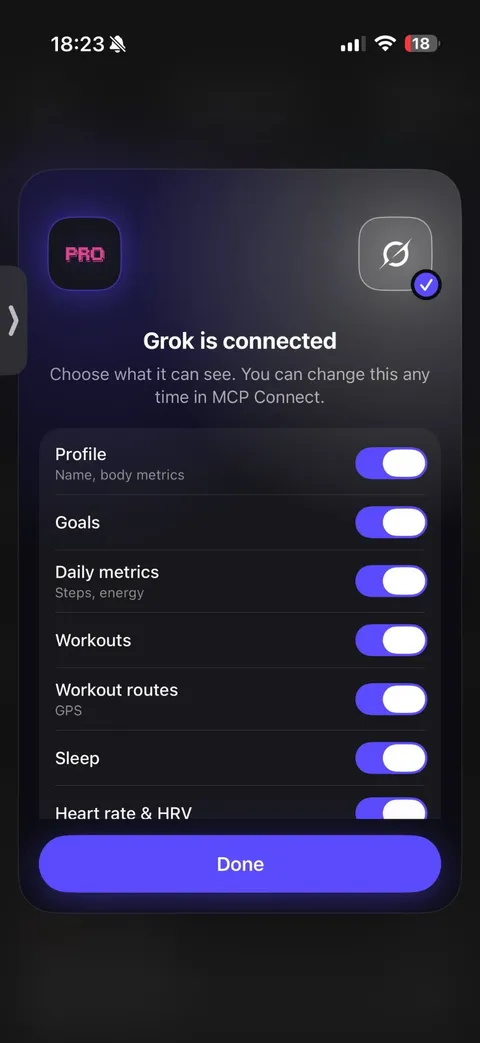
In P.R.O.: choose what the assistant can see, then Done. - Check that the status says Connected.
The Tools tab now lists the P.R.O. tools.
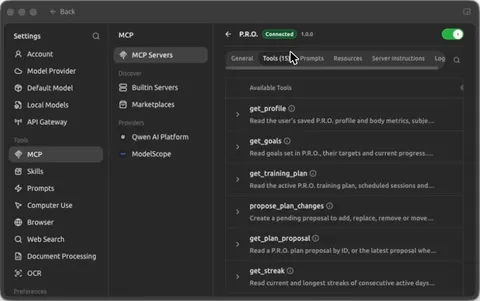
Connected, with the P.R.O. tools listed. - Turn P.R.O. on for your assistant.
In Chat, click the assistant’s name at the top. Open MCP, set MCP Mode to Manual and switch P.R.O. on.
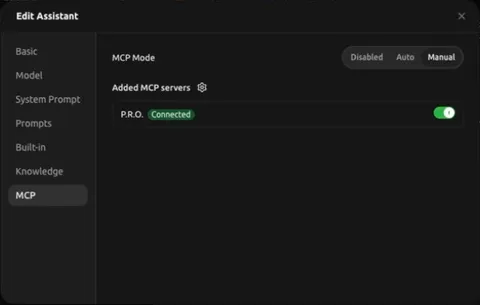
Edit Assistant → MCP: P.R.O. on. - Choose a model that can call tools.
In Settings → Model Provider, pick a provider such as DeepSeek or Moonshot (Kimi), select Add API key, then choose its model at the top of the chat. The free built-in Qwen model can’t call tools, so it can’t read your data.


Connection and tool list tested in Cherry Studio 2.1.10, November 2026. Interfaces change; if a menu looks different, see DeepSeek’s own setup help ↗
What to ask DeepSeek
Ask in your own words. DeepSeek calls P.R.O. when it needs your data.
- “Use P.R.O. to summarize my training this week.”
- “Use P.R.O. to find what changed in my sleep and resting heart rate this month.”
- “Use P.R.O. to tell me whether I’m ready to train today.”
- “Use P.R.O. to build a table of my workouts for the last 30 days.”
If something goes wrong
The model asks me for my training details.
Check two things: P.R.O. is on under the assistant’s name → MCP, and you selected your provider’s model, not the free built-in Qwen.
Cherry Studio says the browser authorization wasn’t finished.
It stopped waiting before you signed in. Select Retry next to the server name and enter a new code from P.R.O. on the page that opens.
Questions about DeepSeek and Apple Health
Can DeepSeek read my Apple Health data?
Through Cherry Studio and the free P.R.O. app. The DeepSeek chat app has no custom connector option and the DeepSeek API doesn’t run MCP servers itself, so a desktop app connects to P.R.O. and offers its tools to the model.
Does this work with Qwen and Kimi?
The setup is the same. Add Moonshot for Kimi, or a provider that hosts Qwen such as SiliconFlow, then choose that model in the chat.
Does it work in the DeepSeek or Qwen phone app?
Those apps have no custom MCP connector option as of November 2026. Use Cherry Studio on your computer.
Where does my data go?
P.R.O. sends the categories you allow to Cherry Studio, and Cherry Studio sends what the model needs to the provider you chose. That provider’s privacy terms apply to those messages.
Is it free?
The P.R.O. app and connector are free. You pay your model provider for API usage according to its pricing.
P.R.O. reads only the Apple Health categories you allow and you can disconnect DeepSeek any time in Settings → MCP Connect.
P.R.O. provides fitness and wellness information, not medical advice.


