
Connect Apple Health to Cursor
Cursor has no Apple Health integration of its own. Add the free P.R.O. MCP server at https://mcp.proapp.uk to mcp.json, sign in with a one-time code from your iPhone, and Cursor’s agent can read your workouts, sleep, heart rate, HRV, training load and training plan.
It takes about two minutes, needs no API key, and the agent can show interactive P.R.O. cards right in the chat.
- Server address
https://mcp.proapp.uk- Sign-in
- OAuth with a one-time code from P.R.O.
- Time
- About 2 minutes
How to connect Cursor
Add P.R.O. to mcp.json from Customize → MCPs, switch it on, then authenticate with a one-time code from your iPhone.
Before you start
- P.R.O. on your iPhone, signed in, with Apple Health access allowed. It’s free.
- Cursor on your computer.
- Open Customize in Cursor and select MCPs.
Customize is in the sidebar. With no servers yet, the MCPs view says Connect External Tools with MCP.
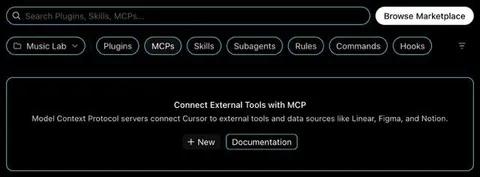
Customize → MCPs → + New. - Select + New.
Cursor opens mcp.json for the current project. To use P.R.O. in every project, add the same lines to ~/.cursor/mcp.json instead.
- Add P.R.O. and save the file.
Only the URL: no client ID, API key or headers. P.R.O. registers Cursor on its own.
{
  "mcpServers": {
    "pro": { "url": "https://mcp.proapp.uk" }
  }
}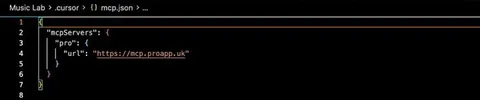
The whole mcp.json entry: a name and the P.R.O. address. - Switch P.R.O. on.
Back in Customize → MCPs, pro appears in the list. If it says Disabled, turn it on with its toggle.
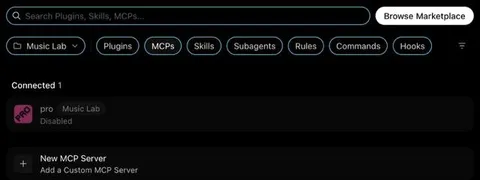
pro is added; switch it on if it says Disabled. - Select Authenticate.
P.R.O. moves to Needs Attention with Needs authentication. Authenticate opens the P.R.O. sign-in page in your browser.
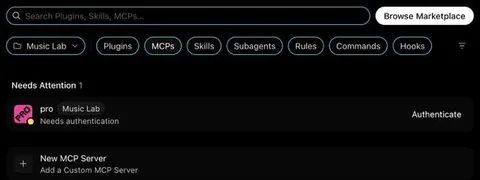
Needs authentication → Authenticate. - Sign in to P.R.O.
The page says Connect Cursor to P.R.O.
On your iPhone, open P.R.O. → Settings → MCP Connect and tap Get connection code. Enter the six-character code on the authorization page and select Connect. The code works once, for 10 minutes.
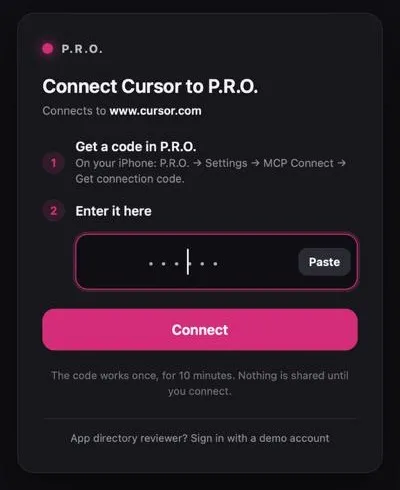
Enter the six-character code from P.R.O. and select Connect. - Choose what Cursor can access.
Review the data switches in P.R.O. and tap Done.
- Check that P.R.O. is connected.
Customize → MCPs shows pro with a green dot and 15 tools, 1 resource enabled.
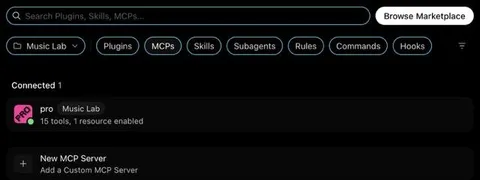
Connected: 15 tools and the card resource. - Ask the agent.
In a chat, try “Use P.R.O. to show my training summary for this week.” The agent calls P.R.O. and shows the answer as interactive cards.


Tested by us in Cursor, November 2026. Interfaces change; if a menu looks different, see Cursor’s own setup help ↗
What to ask Cursor
Ask in your own words. Cursor calls P.R.O. when it needs your data.
- “Use P.R.O. to show my training summary for this week.”
- “Use P.R.O. to export my runs from the last three months to a CSV and chart weekly distance.”
- “Use P.R.O. to compare my sleep and HRV on the nights after hard sessions.”
- “Use P.R.O. to check whether I’m on track for my training plan.”
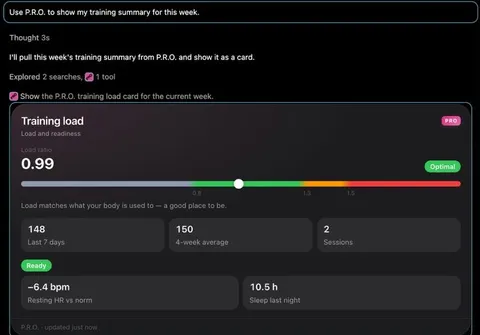

A P.R.O. card in Cursor’s agent chat, November 2026.
If something goes wrong
P.R.O. says Disabled.
Open Customize → MCPs and turn it on with its toggle. Disabled servers don’t load or appear in chat.
P.R.O. says Needs authentication.
Select Authenticate and sign in with a new code from P.R.O. Cursor asks again if the sign-in has expired.
The agent doesn’t use P.R.O.
Mention P.R.O. in your request, start a new chat if needed, and check that pro shows 15 tools in Customize → MCPs.
The code is rejected.
Each code works once and expires after 10 minutes. Get a new one in P.R.O. → Settings → MCP Connect.
Questions about Cursor and Apple Health
Can Cursor read my Apple Health data?
Yes, through the free P.R.O. app. Add https://mcp.proapp.uk to mcp.json and sign in with a code from P.R.O. Cursor’s agent then reads only the categories you allow.
Do I need an API key or client ID?
No. P.R.O. uses OAuth with a one-time code, so the mcp.json entry needs only the URL. Cursor registers itself.
Does Cursor show P.R.O. cards?
Yes. In our test, Cursor’s agent showed interactive P.R.O. training load and workout cards in the chat.
Should I use the project or the global mcp.json?
.cursor/mcp.json in a project makes P.R.O. available in that project only. ~/.cursor/mcp.json makes it available in every project.
Does it work with Garmin, WHOOP or Oura?
Yes, for whatever those devices write to Apple Health. P.R.O. reads Apple Health, so the device doesn’t matter. See the sync guides at proapp.uk/apple-health-sync.
How do I remove Cursor’s access?
In P.R.O., open Settings → MCP Connect, tap × next to Cursor and confirm Disconnect. To remove it from Cursor too, delete the pro entry from mcp.json.
P.R.O. reads only the Apple Health categories you allow and you can disconnect Cursor any time in Settings → MCP Connect.
P.R.O. provides fitness and wellness information, not medical advice.


